• Tag Archives Dell
  • Digital Archaeology: Dell Inspiron 9400

    The Inspiron line has long been Dell’s main consumer laptop models. The Inspiron 9400 was released in the 2005 time frame. It is for all practical purposes identical to the Inspiron E1705 and in fact the manuals were shared. They just had different default configuration options and were targeted at different markets. It is also substantially the same as the M90 and XPS models of the same time period, again, with different default configuration options.

    The Inspiron 9400 supported an incredibly large range of hardware options. There were multiple motherboards used. One supported add-in video cards such as the FX2500M, GeForce Go 7800 and 7900GTX among others while the second motherboard option only supported Intel’s integrated graphics. Display options included a 17″ Wide Screen WXGA+ (1440×900) panel or a 17″ Ultrasharp Wide Screen WUXGA (1920×1200) panel. The processor could be anything from a single core 32-bit Core Solo T1300 running at 1.66 GHz all the way up to 64-bit Core 2 Duo T7600 running at 2.33 GHz.
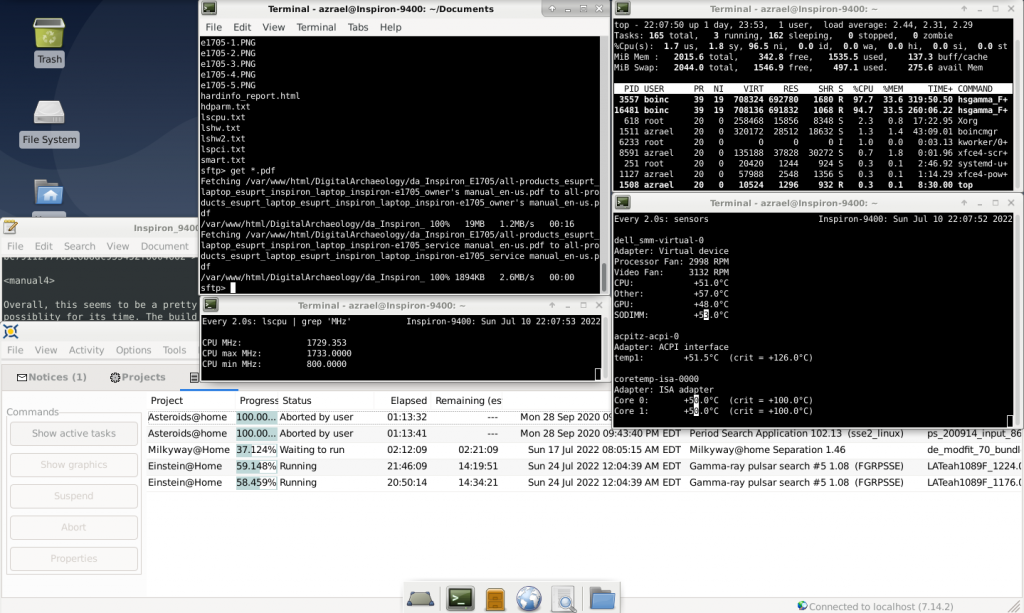
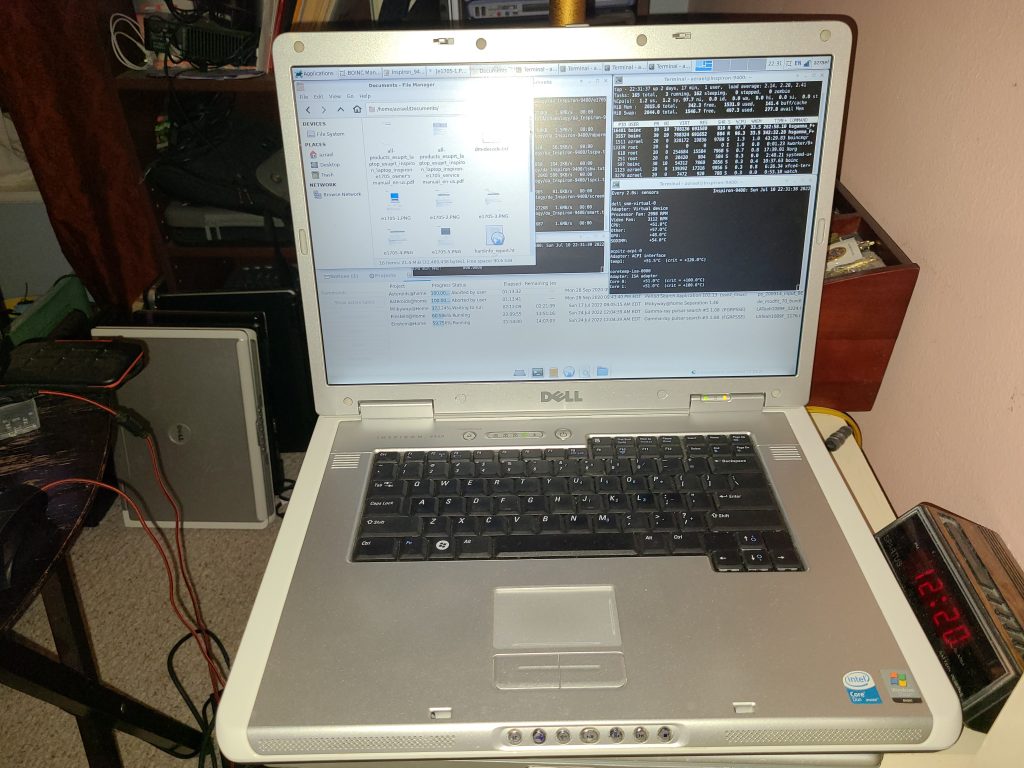
    My particular Inspiron 9400 is among the lower end models. Specs include:

    • CPU: Core Duo T2080 @ 1.73 GHz
    • Chipset: Intel 945
    • Graphics: Mobility Radeon X1400
    • Memory: 2GB DDR2-533 (2x512MB)
    • Display: 17″ WXGA+ (1440×900)
    • Hard Drive: ST9129822AS 120GB 5400RPM Serial-ATA/150 8MB buffer
    • Optical Drive: TSSTcorp TS-L632D DVD+-RW
    • Ethernet: Broadcom BCM4401-80 100Base-TX
    • Wi-Fi: Broadcom BCM4311 802.11b/g WLAN

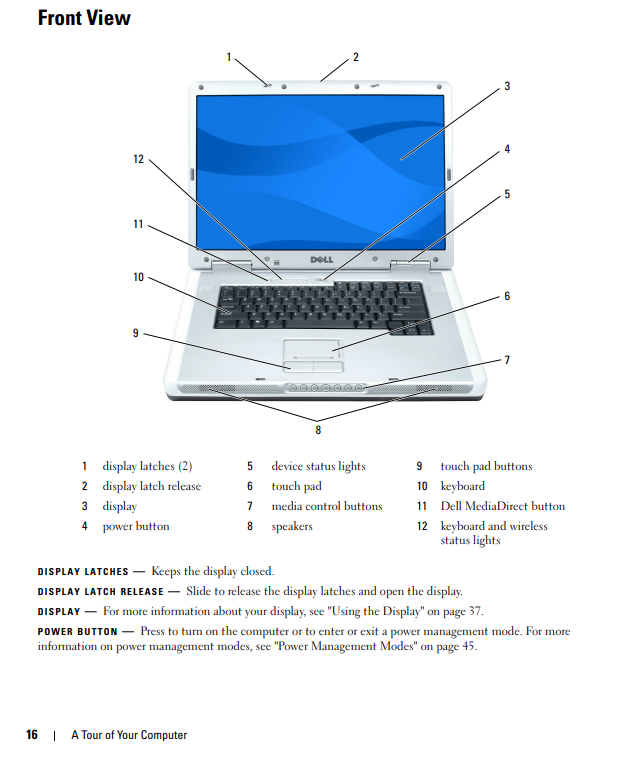
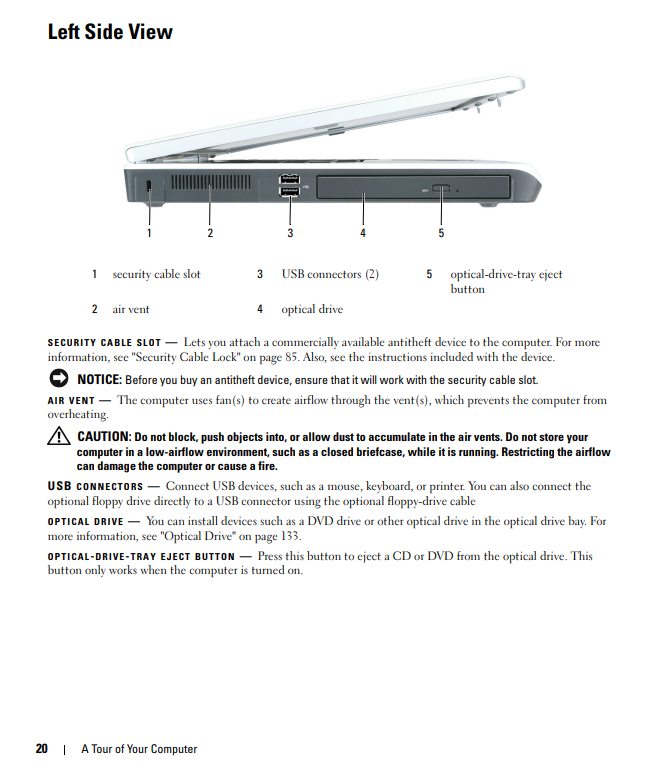
    Plus tons of expansion slots and ports including 4 USB 2.0 ports, an ExpressCard 54mm slot, FireWire, 5-in-1 Flash Reader, headphone and microphone connections, 1 DVI-D, 1 VGA, and 1 S-Video Out.
    As far as upgrade possibilities, a Core 2 Duo T7600 could be added and up to 4GB of 667MHz DDR2 RAM is supported. This laptop has what is probably the best graphics option, at least in retrospect. The ATI X1400 is faster than the Intel option and more reliable than the nVidia options which had heat and solder issues (though they werer certainly faster). Unfortunately, it has the lower resolution screen option otherwise it would be a better candidate for upgrade.
    This laptop was made with Windows XP and Vista in mind. It is also capable of running Windows 7 and even Windows 10 (though some more RAM would be needed). However, operating systems supporting 32-bit CPUs are gettig pretty hard to find these days. Windows 10 dropped support in 2020. I’m currently running a 32-bit version of Debian which is the only mainstream Linux distribution I am aware of that still does new 32-bit releases. The Insprion 9400 is capable of being upgraded to 64-bit CPUs as mentioned above, however it is still limited to about 4 GB of RAM due to limitations of the chipset.
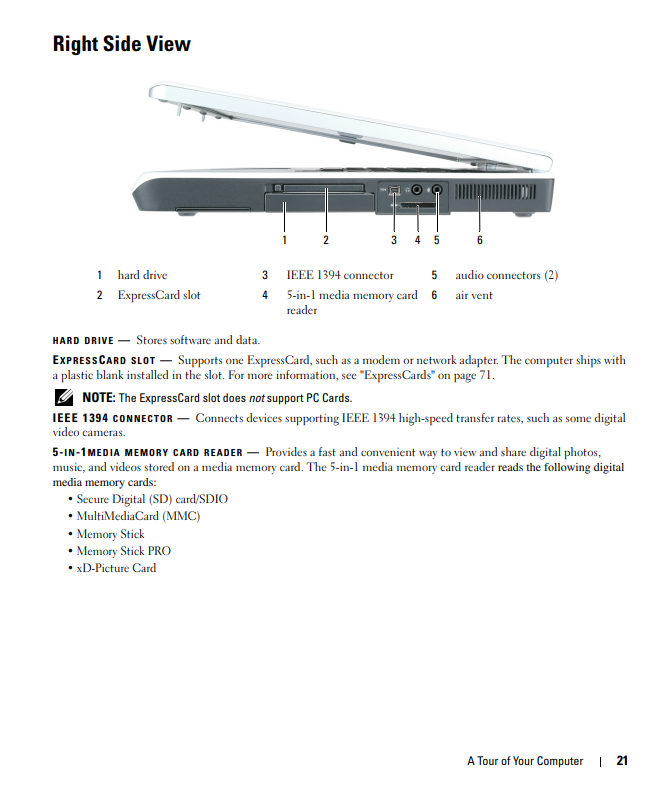
    Like pretty much any computer I ever own, this one is running BOINC whenever it is turned on. The only projects it seems to get work for out of my normal selection is einstein@home and milkyway@home. I think that is because most projects no longer support 32-bit CPUs. You can see how it is doing overall via Free-DC or BOINCstats.
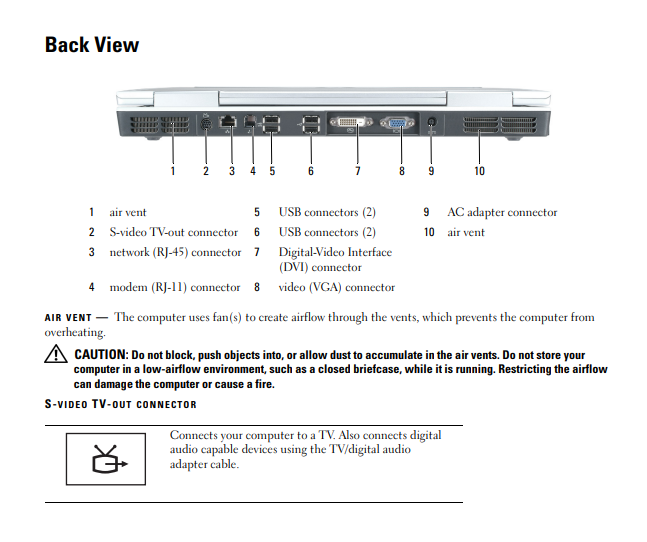
    Overall, this seems to be a pretty solid laptop with a great deal of expansion possibility for its time. The build quality is decent and the keyboard feels pretty good. However, it isn’t as nice in that regard as later Latitudes and Precisions. Despite pushing the CPU at 100% all the time with BOINC, it runs cool and quiet. The large size no doubt helps some with that, plus it has a relatively low end CPU at the moment that is probably on the cooler end. If I had been in the market for a laptop at the time this one was being sold, it probably would have been a top contender (though with a Core 2 Duo CPU and the higher resolution screen).
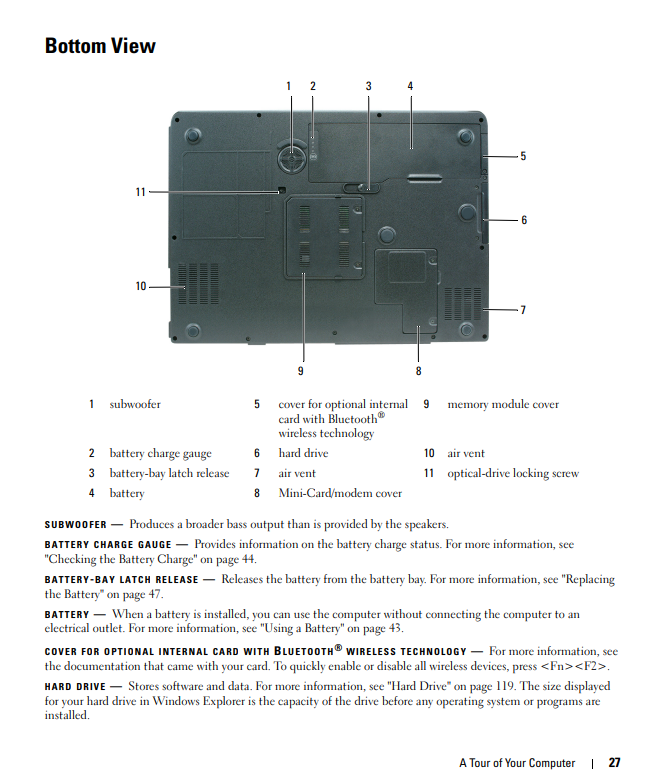
    Despite having some fairly significant upgrade potential, I doubt I will be upgrading this one. I would rather start with the model with the higher resolution screen if I were going to bother. Having said that, there’s a good chance I have a Core 2 Duo that would work and some extra memory so who knows. It at least has what I consider to be the best GPU option overall.

    Check out the complete specs of this laptop here.


  • Digital Archaeology: Dell Inspiron 1525

    The Dell Inspiron 1525 appears to have been one of the more ubiquitous laptop models. At least if we are talking in about 2008 or so. Like many laptop models, this one had a pretty wide variety of configurations and included Celeron, Pentium Dual Core, and Core 2 Duo CPUs. Generally speaking, it was a mid-range laptop but there was a wide variety in that range. Specifically, at least according to Wikipedia, the Inspiron 1525 could come with any of the following processors:

    • Celeron 540
    • Celeron 550
    • Celeron 560
    • Pentium Dual-Core T2370
    • Pentium Dual-Core T2390
    • Pentium Dual-Core T2330
    • Pentium Dual-Core T4200
    • Pentium Dual-Core T4500
    • Core 2 Duo T5250
    • Core 2 Duo T5450
    • Core 2 Duo T5550
    • Core 2 Duo T5750
    • Core 2 Duo T7250
    • Core 2 Duo T8100
    • Core 2 Duo T8300
    • Core 2 Duo T9300
    • Core 2 Duo T9500

    What really relegated it to, at best, a mid-range machine was the lack of dedicated graphics, instead relying on an integrated Intel solution, in this case a GM965. The vast majority of laptops at the time used motherboard integrated Intel graphics because it was cheap and functional though it was pretty close to useless for gaming.

    The stats of this particular Inspiron 1525 include:

      • CPU: Pentium Dual Core T2390 @ 1.86GHz
      • RAM: 3 GB DDR2 667
      • Chipset: Intel GM965 Express
      • Graphics: GMA X3100
      • Display: 15.4″ 1280×800
      • Hard Drive: 250GB ST9250315AS
      • Optical Drive: TS-L632H 8x DVD±RW Dual Layer
      • Wi-Fi: Broadcom 4312
      • I/O: 10/100 Ethernet, 56K Modem, S-Video, 4 x USB 2.0, Express Card, VGA, HDMI

    The 3GB of RAM seems like an odd number but I think that amount was provided because that is often all that 32-bit versions of Windows could see. Sometimes other hardware limitations made it impossible to see a full 4 GB as well. This laptop came with Windows Vista and despite this laptop having a 64-bit CPU, I’m pretty sure it came with a 32-bit version of Vista. I think the reason was that many vendors did not have 64-bit compatible drivers ready. A 64-bit OS as the default wasn’t really the norm until Windows 7 came along. Windows Vista had a lot of stability issues early on anyway largely due to immature drivers. If you ordered an OEM system then you were likely ok but if you were building your own, good luck. People who built their own systems largely stayed with Windows XP until Windows 7 came along.

    The delineation between a Core 2 Duo processor, a Pentium Dual Core processor and a Celeron were not always very clear. Generally speaking, Core 2 Duo > Pentium > Celeron though that’s only true when comparing processors released in the same general time frame. And even that is not always true between the Pentium and Celeron. The biggest difference between the Pentium dual core and Core 2 Duo is that the Core 2 Duo has twice the cache (2 MB vs. 1 MB). This made some difference in speed but not a huge amount (at the same clock speed of course). However, Core 2 Duos were available at higher clock speeds and higher bus speeds.

    One notable problem this model had was overheating. Many people experienced random shutdowns most often due to overheating, sometimes when pushing the CPU hard and sometimes hardly at all. It seems the Inspiron 1525 had a rather poor cooling design. Part of the problem is that the fan intake is easily clogged with dust. This happens with most laptops eventually but it seems to happen in pretty short order with this model. Even the one I have experienced this problem to some degree. It didn’t shut down but I did see the temperature reaching pretty close to the max this CPU can handle resulting in periodic throttling. I blew out the van vent area and now it is better. It still runs hot when pushed but not so hot that the CPU throttles. I probably need to take the bottom cover off and remove the heatsink to get to the dust bunnies more thoroughly.

    As far as upgrades go, your options are somewhat limited. The CPU can be bumped up quite a bit as any Inspiron 1525 should support at least the CPU list above and probably lots more besides. Google tells me that it should be upgradeable to the Core 2 Duo T9500 which is 2.6 GHz. A pretty nice bump from 1.86 GHz. However, RAM upgrades are limited by the chipset. Officially, you can install 4 GB but the system will still only see a fraction of that last GB. I have seen reports of the BIOS recognizing up to 6 GB but I’m not sure that would increase the usable amount. So basically, this laptop has 3 GB installed and effectively it isn’t upgradeable beyond that. That means as far as Windows operating systems go, you could probably run 8.1 but 10 would be effectively unusable even if it technically works. Personally, while it originally came installed with Vista, I would stick with XP or just put Linux on it (which is what I did). You can of course always stick in an SSD in it which would make it snappier and would probably be especially beneficial if you are trying to run Windows versions past XP. This laptop really sits in an odd place. As a usable low-end machine, the lack of RAM upgradeability makes Linux your only practical option since Microsoft has dropped support anything earlier than Windows 10. As a retro machine for playing games it isn’t that great because it was a crappy machine for games when new. However, you could probably install Windows XP and play some earlier XP games on it. It would just have to be stuff released a few years (at least) before this laptop came along.

    The Dell Inspiron 1525 received mostly positive reviews. Reviewers seem to have an obsession with thinner and lighter and this model was a pretty substantial improvement in those areas over its predecessor, the Inspiron 1520. However, despite being a little bulkier, the previous model at least had the option of discrete graphics making it a better choice for some. The build quality of the Inspiron 1525 seems pretty decent. I like the silver look on the inside and the way the trackpad is just a recessed part of the palm rest (though it could be a little bigger). There were several options for colors as far as the outside goes. This one happens to be black and it looks pretty good. It also has not gotten sticky with age as I have seen happen to some other models.

    Despite having a relatively low-end processor, even for the time, and only 3 GB of RAM, it handles an install of the latest version of Xubuntu pretty well. I am able to have BOINC running a couple of tasks and a browser open with 2 or 3 tabs without any massive slow down. It’s not exactly snappy but it isn’t painfully slow either. Basic office tasks should be fine as well. I’m sure opening very many more tabs or trying to navigate resource intensive web pages would slow things to a crawl though.

    You can check out how it is doing on Einstein@home, Rosetta@home, Milkyway@home, and Universe@home or how see how it is doing overall at Free-DC or Boinc Stats.


  • Dell Precision T3610 Computer Demons

    I’m going to start posting my random computer questions here in the hopes that someone might be able to answer them. Now I am a software engineer by trade and have been building my own PCs for 20+ years. I’m not exactly a novice so whenever I ask a question here it’s because I’ve reached the conclusion that it is computer demons at fault and am hoping that someone has a better answer because clearly that can’t be right…can it?

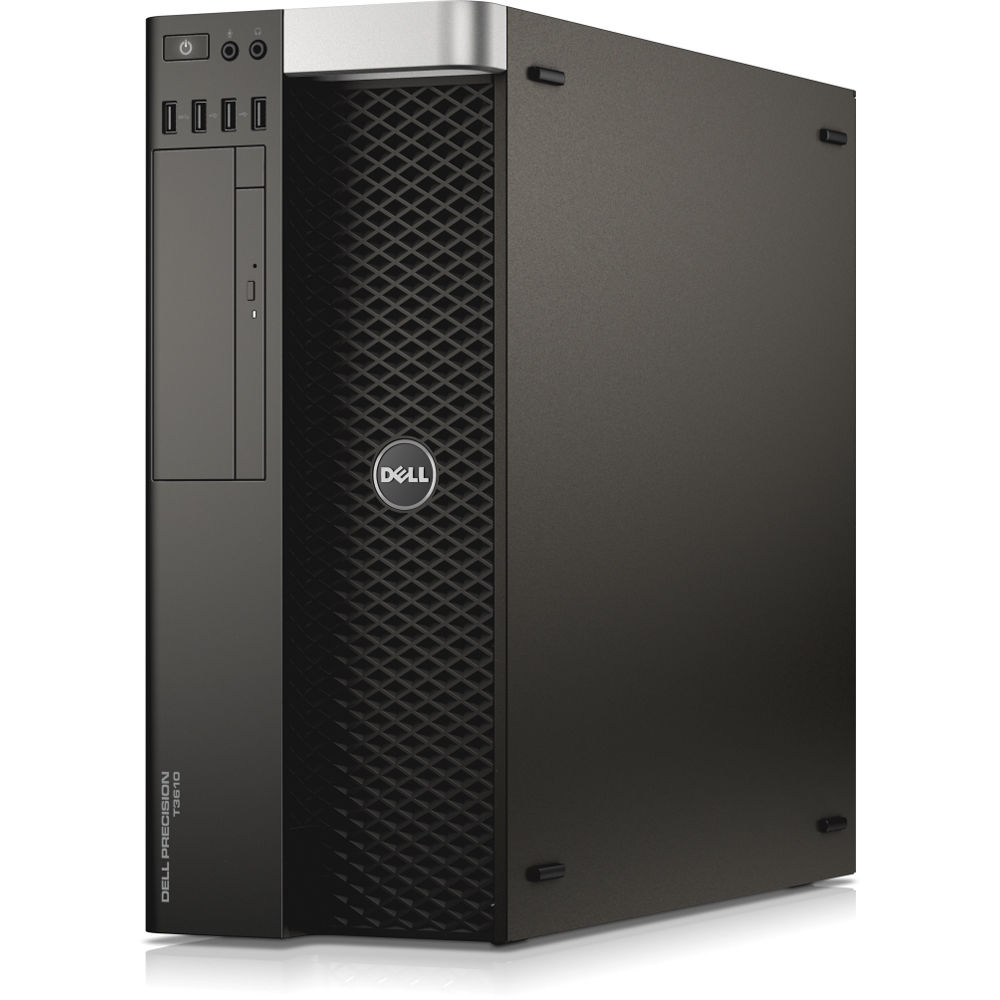
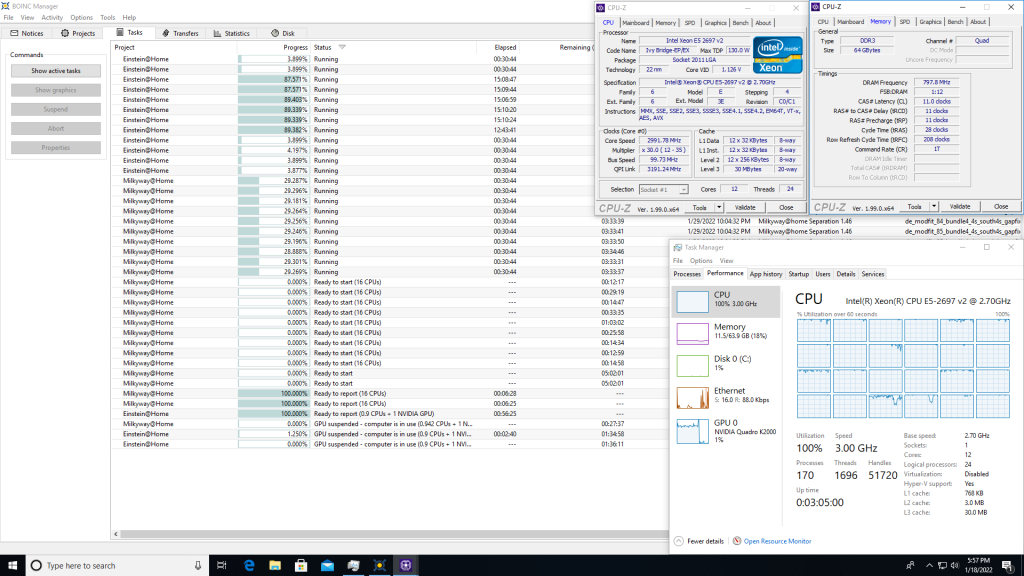
    This question involves a Dell Precision T3610 with an Intel Xeon 2697v2 (Ivy Bridge) 12-core CPU, 64 GB of DDR3-1600 ECC RAM and an nVidia Quadro K2000 video card.

    When I first got this machine, it had a recent version of Linux Mint installed. It seemed to work fine. I installed BOINC on it (which I do with every computer I get my hands on) and added my typical projects – einstein@home, rosetta@home, milkyway@home and World Community Grid. After it downloaded work units and started crunching them, the computer started responding VERY sluggishly. While BOINC works a computer hard, it runs at low priority so typically it is only using what would otherwise be idle cycles and normally a computer running BOINC would still be very responsive. In addition, I noticed that the work units were progressing much more slowly than they should be. However, everything looked like it should otherwise…CPU was running at about 3GHz, BOINC tasks were using most of the CPU cycles, etc. Nothing looked out of place to indicate why it would be operating more slowly than normal.

    Upon rebooting and paying closer attention, it looked like Linux was spitting out some error messages during boot that indicated corrected memory errors. I forget exactly what the errors were but when I looked it up it sounded like the problem MIGHT not be actual memory errors but a bad driver. Instead of trying to screw around with that I decided to install a fresh copy of Xubuntu (my normal linux of choice) to see what would happen. Perhaps unsurprisingly I got the same results.

    Then I installed Windows 10. Windows 10 behaved basically the same way. It got very sluggish when BOINC started up its tasks. I did notice that the System task was using quite a bit of CPU (at least one full core) and also hitting the disk pretty hard. But this is so often the case with Windows that it’s hard to say for sure if it is related. So CLEARLY this is a problem of bad memory, right? Well, maybe…but here is where it gets a little weird…

    I discovered this “fix” quite by accident. When you install Windows 10, it defaults to putting your computer to sleep after 30 minutes of inactivity. Since I run BOINC I never want this to happen but I inevitably forget that setting until it happens the first time after a new install. So sure enough, I forgot to change that setting and the computer went to sleep after 30 minutes. I pressed the power button to wake it up and it woke up…but without the sluggishness it had before. Also, BOINC tasks seemed to be progressing at a more reasonable rate of speed. It seems whatever the problem was had been cured by a short nap. A fluke you say! But no…it’s repeatable. If I reboot the computer, it behaves sluggishly when BOINC is running and runs much slower than it seems it should. Put it to sleep and wake it up again, and it performs normally until rebooted again. And when I say rebooted, i don’t even mean power cycled…just rebooting brings the problem back.

    I also ran Windows Memory Diagnostic and it found no errors.

    This machine has the latest BIOS available and Windows does not show any missing drivers (and of course seemingly the same problem existed under Linux as well…not sure if a sleep and a wake-up would have fixed it there too or not). The memory is new but that doesn’t eliminate the possibility of a bad stick (it has 4 16GB modules in a quad channel configuration). It just seems odd that putting the computer to sleep and waking it up solves the problem and rebooting brings it back. What could possibly cause that? Since the problem exists across multiple operating systems, surely it is a hardware issue of some sort.

    Personally, I’m leaning toward a slightly more obscure solution than bad memory as I don’t see how sleeping and waking could possibly fix that. Maybe a flaky memory controller on the CPU? I would think if that were the case though that I would see all kinds of stability issues but there are none, either in its “sluggish” state or in its “fixed” state. It can run for hours on end either way with no crashes or other signs of instability, all the while using nearly 100% of the CPU and GPU for BOINC tasks.

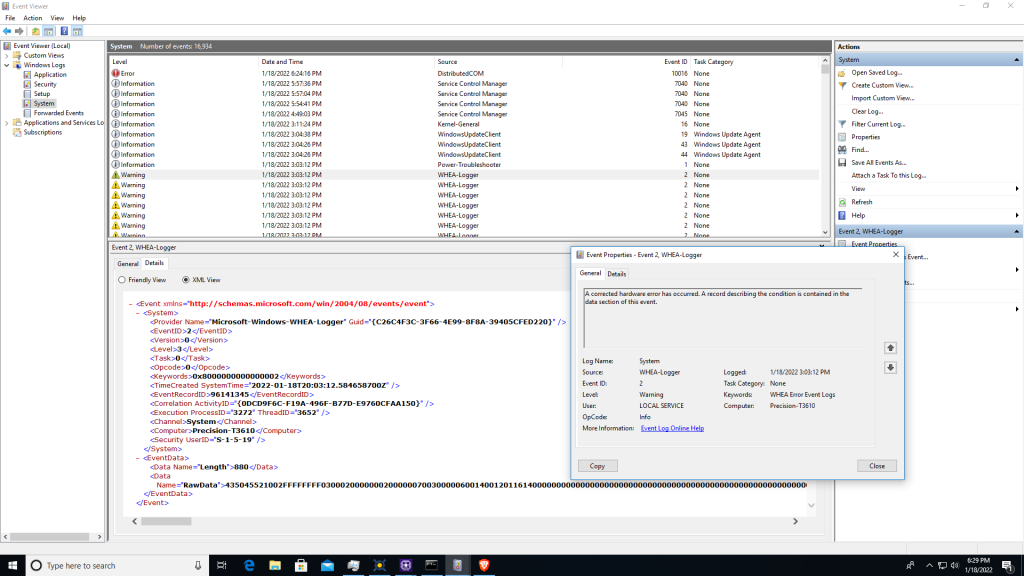
    Poking around in Windows Event Viewer, I did find a whole crapload of WHEA-Logger errors that seemed to correspond to when the system was sluggish that say “A corrected hardware error has occurred. A record describing the condition is contained in the data section of this event.” But the “data” section might as well be random numbers for all the use it is.

    For one reason or another, I suspect that I am getting a constant stream of memory errors (that are ECC correctable so no crash) in the sluggish state and this is somehow resolved by sleeping and waking. Can correctable memory errors lead to a sluggish system? Why would sleeping and waking resolve this sort of problem?

    Like I said, it’s computer demons…

    I guess by process of elimination I could try swapping out the memory and then the CPU, I just don’t know if I have appropriate spares lying around at the moment. And it’s not like this is my primary computer…it’s just a toy to play with so as long as sleeping and waking it resolves the issue, then that’s what I’ll do. It just seems so weird.